How To Stop Automatic Plugin Installations In Firefox
Yesterday’s incident (read Microsoft Silently Installing Windows Presentation Foundation Plugin For Firefox for pointers) brought up a question on how the plugin that caused the problems was installed it first place. Mozilla Firefox users with the Microsoft net. Framework 3.5 SP1 had the plugin installed without them accepting the installation of the plugin. This can be problematic not only from a security standpoint but also from a stability one.
The majority of the blame should not be put solely on Microsoft though. Other software companies like Apple or Google have been doing exactly the same thing. Firefox users might notice a Google Update plugin or Apple iTunes plugin in the plugin section of the web browser. And those installations are not blocked by the Firefox browser.
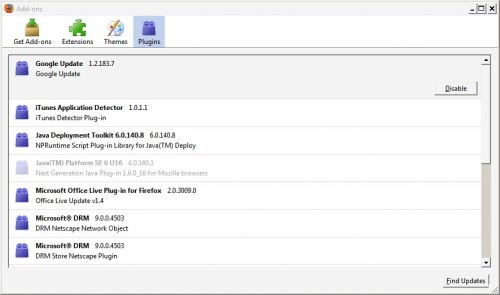
There is however an option to block automatic plugin installations. It is not a perfect solution though but it is all that is provided currently. The Mozilla developers have added several directories and locations in the Firefox preferences that are automatically scanned by the web browser for plugins. If a plugin is found it will be added and activated in the browser.
These plugin directories are listed in the all.js files which is located in the greprefs directory of the Firefox installation. The following directories and locations are listed in the file (search for plugin or another word that will move the cursor to that position).
// Locate Java by scanning the Sun JRE installation directory with a minimum version
// Note: Does not scan if security.enable_java is not true
pref(“plugin.scan.SunJRE”, “1.3?);
// Locate plugins by scanning the Adobe Acrobat installation directory with a minimum version
pref(“plugin.scan.Acrobat”, “5.0?);
// Locate plugins by scanning the Quicktime installation directory with a minimum version
pref(“plugin.scan.Quicktime”, “5.0?);
// Locate and scan the Window Media Player installation directory for plugins with a minimum version
pref(“plugin.scan.WindowsMediaPlayer”, “7.0?);
// Locate plugins by the directories specified in the Windows registry for PLIDs
// Which is currently HKLM\Software\MozillaPlugins\xxxPLIDxxx\Path
pref(“plugin.scan.plid.all”, true);
// Controls the scanning of the Navigator 4.x directory for plugins
// When pref is missing, the default is to pickup popular plugins such as
// Flash, Shockwave, Acrobat, and Quicktime. If set to true, ALL plugins
// will be picked up and if set to false the scan will not happen at all
//pref(“plugin.scan.4xPluginFolder”, false);
As you can see there are entries for Sun Java, Adobe Acrobat, Apple Quicktime, the Windows Registry and Netscape plugins. Putting a comment in front of the plugin locations that should not be scanned will block those plugins from being started with Firefox (comments are added by adding // in front of a row).
Many Microsoft, Apple and Google plugins are added from the location in the Windows Registry. It is not advised to block that location completely as it also lists the Adobe Flash plugin in the Registry which would stop Flash support in the web browser. The only solution right now would be to go into the Registry and backup and remove the plugins that are not needed. If it were not for the Flash plugin the whole Registry location could be blocked from being scanned.

The programs will not add their plugins again to the Windows Registry unless they are updated or reinstalled. Another option to automatically block plugin installation (and display a prompt instead) is to use a software that will show a prompt before a specific Registry key is edited in Windows. A program like MJ Registry Watcher can do that. Simply add the HKEY_LOCAL_MACHINE\SOFTWARE\MozillaPlugins key to the list of keys protected by the program to be informed whenever a software tried to change or add entries to the key.
ghacks.net |



